Certificates
What is a certificate
Security certificates are a fundamental component of internet security, enabling safe and secure communication between clients (e.g. user) and servers (e.g. website). By providing encryption, authentication, and data integrity, they help protect sensitive information and build trust in online interactions.
Certificates in pRED CS-CoE
This documentation outlines the processes for managing and ordering certificates.
There are several approaches available for handling certificates, each with its own advantages and disadvantages. If you need a certificate, please contact the Solution Engineering and Infrastructure capability circle (see the list of responsible personnel below). We can help identify the best option for your needs and address any potential issues that may arise.
Certificate types
There are different types of certificate which will be used in the pRED CS-CoE space:
-
Server Certificates
Server certificates are used to authenticate the identity of a server and enables an encrypted connection. When installed on a website, an SSL certificate enables the visitor to use the protocol HTTPS on the said website. It also installs indicators that vouch for the authenticity of the website to a certain extend. -
Client Certificates
A client certificate can be defined as a digital certificate used to authenticate the identity of the requester to a remote server. A client certificate ensures the server that it is communicating with a legitimate user. E.g. Proxify access -
Device Certificates
Device certificates are out of scope, as all hardware related thnigs is handled by Group Informatics.
Common Issues
Certificates could be ordered in different ways (see below). A certificate normally expires after a timeframe of 2-3 years. Before the expiration, the person (as well as the deputy) who ordered the certificate, will get a notification. Here are the following 2 issues:
-
The person who ordered the certificate is no longer available
-
It is not known, how and where the certificate is used.
Therefore when it comes to certificate management, a solution for the above described issues should be available to avoid future problems in case of certificate expiration.
-
Responsibility of a certificate should not be related to single person rather than a team
-
A certificate is always used for a specific purpose/system. This should be documented.
Order Certificate
There are several ways how certificates could be issued in the Roche environment.
Before ordering a new certificate, please check back with the people (see below) from the
Solution Engineering and Infrastructure capability circle to find the best way for your certificate needs. There might be an already an established way which will
make it easier to manage and maintain certificates.
IMPORTANT: The person who orders the certificate, needs to track/maintain that certificate.
Here are the most common ways:
-
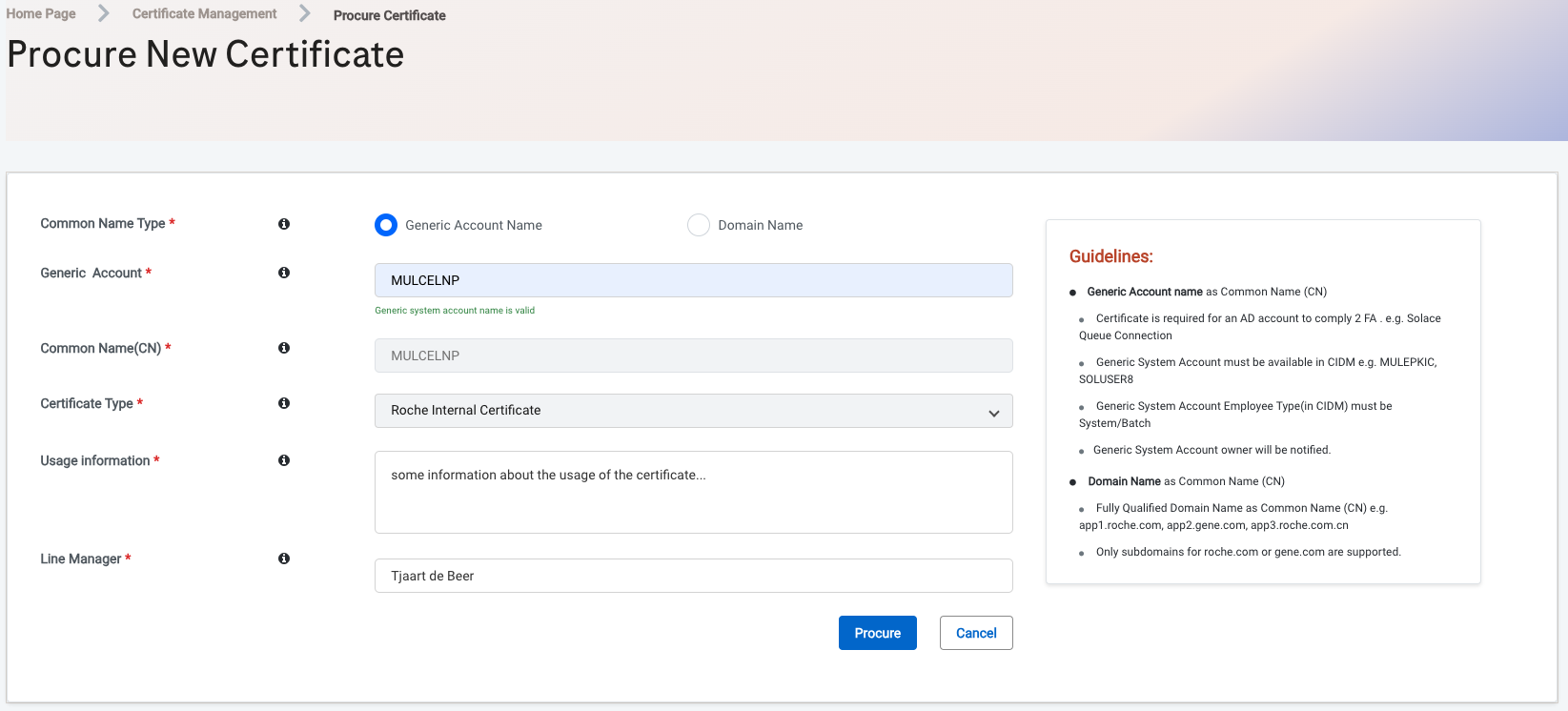
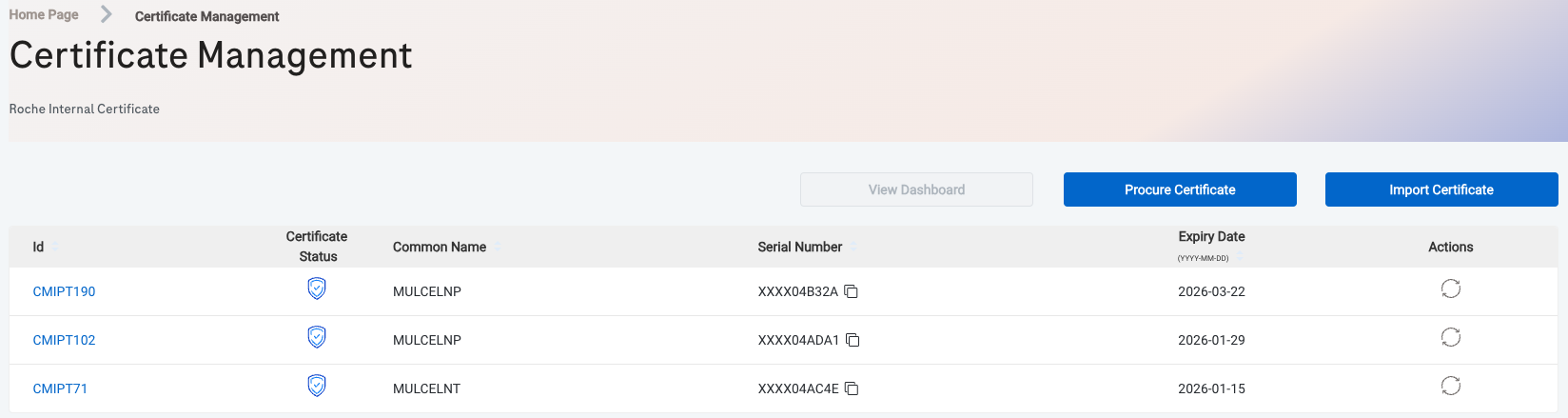
ProTools (preferred way for client certificates)
https://emea.leap.roche.com/LCA_GLOB_MuleUtils/
ProTools offers some basic features to easily manage certificates. Nevertheless, some other important things, e.g. usage of the certificate, team responsibility, is missing.
-
iCare
A certificate could be ordered with or without CSR
https://roche.service-now.com/icare?id=sc_cat_item&sys_id=98349b49877d99d0332aa9f30cbb35c4
Approval is needed from ServiceNow Business Service Owner and/or Line Manager. If you need to generate certificates via iCare, you are need to manually track their expiry date and the area where they are used. You should create a table in your technical documentation with at least the name, expiry date, link to the place of usage and a link to the private key of the certificate. The private key of the certificate should have the access limited to your Dev team members for example.
KeyFactor API
The Keyfactor Command solution exposes an API to allow third-party software to integrate with the advanced certificate enrollment and management features of Keyfactor Command in a secure manner and to provide a mechanism for automating routine or bulk tasks that would be cumbersome to perform through the browser-based user interface. The most important feature is the support of common certificate enrollment and management tasks.
This API is used by the SciComp team to manage certificates for in their responsibility.
A technical account is needed to access the KeyFactor API. This technical account is accessible to a subset of people (SciComp) team.
A similar approach is under discussion in the Solution Engineering and Infrastructure circle.
Creating a certificate
A new certificate could easily request with KeyFactor:
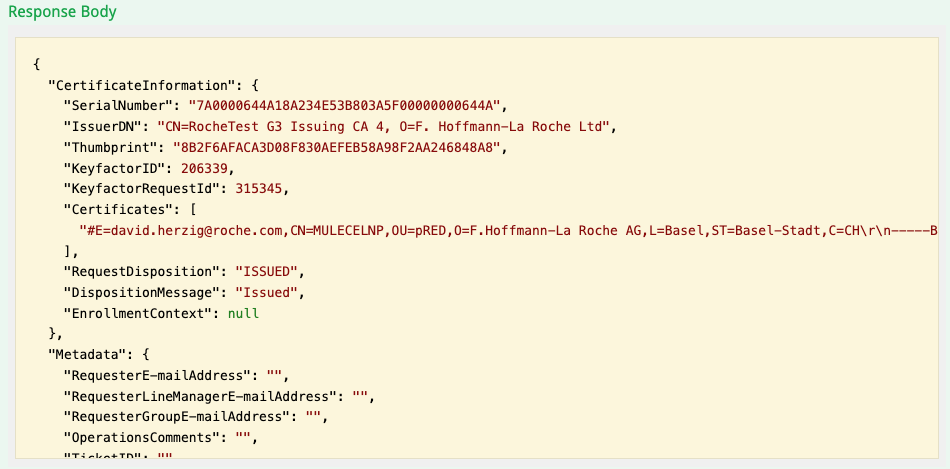
The purpuse of the certificate (usage) could be stored as metadata
A technical account is needed to access KeyFactor API. In the interest of security, this technical account is only available to a subset of people. The KeyFactor API will (probably) not allow to give all CS-CoE people access to KeyFactor API.
Receiving information about a certificate
KeyFactor API could also be used to receive all certificates which have been created with KeyFactor API by a specific account.
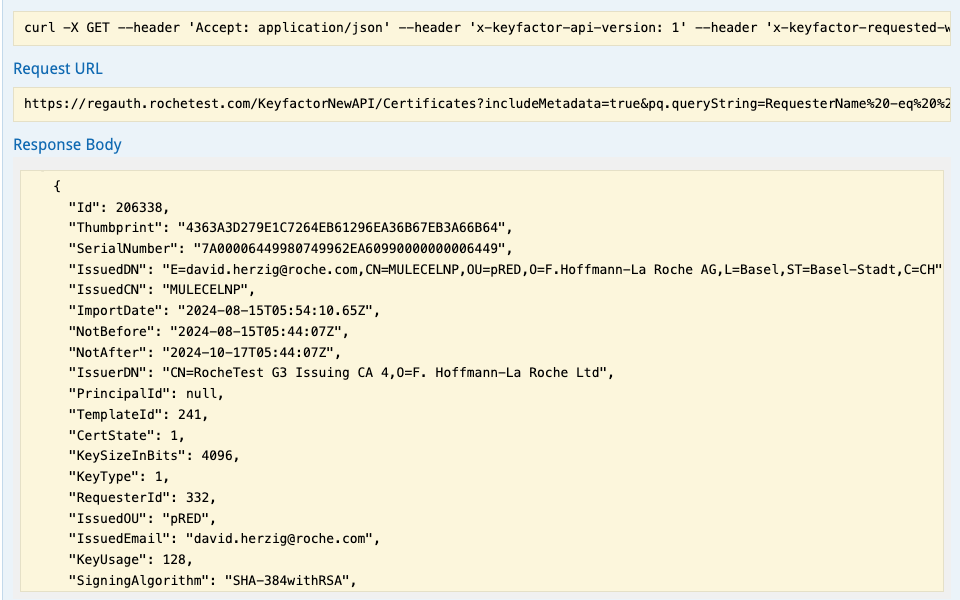
This functionality could then be used to get a list of all certificates, filter out all certificates which expires soon, get the main purpose and have an easy way to renew certificates.
Using KeyFactor API to create Client Certificates
A substantial amount of resources is needed to setup a simple web form, which could
be used by CS-CoE people to request new certificates.
Client Certificates in CS-CoE space are mainly used to access proxify.
In proxify we currently have 27 API’s.

In addition to that, if a group outside pRED CS-CoE wants to access an API, this group needs to request a certifcate by themselve.
The problem in general should be solved across Roche, not as a single solution in CS-CoE:
https://docs.google.com/presentation/d/1z33MwpaYR2v6OgcqvCnUHSVSON8TxNnxn298zN4IC1U/edit?usp=sharing
Certificate Tracking
If you have ordered a certificate by yourself, there is a possibility to
add some information about this certificate in a shared GSheet. This allows
others to deal with that certificate in case one of the issues described above
will occure.
https://docs.google.com/spreadsheets/d/18rvqI9X_9FgPfUn4JBGFdDxxrkyyyxujs6-Q9rEUStU/edit?usp=sharing
Common Operations
Create CSR (Certificate Signing Request)
openssl req -newkey rsa:4096 -keyout PRIVATEKEY.key -out MYCSR.csrTODO: WHAT HAPPENS WITH THE PRIVATEKEY?
TODO: COMMON NAME?
Convert Certificates
Certificates could be delivered in the following format:
-
PEM
PEM, which stands for privacy-enhanced mail, is the most popular container format used by certificate authorities (CAs) to issue SSL certificates. -
P12/PFX
The P12/PFX format is the binary format that stores the server certificate, the intermediate certificate and the private key in a single password-protected pfx or p12 file. -
P7B
Certificates in P7B formats are encoded in Base64 ASCII encoding. The thing that separates P7B formatted certificates is that only certificates can be stored in this format, not private keys. In other words, a P7B file will only consist of certificates and chain certificates.
ACME Service
The Automatic Certificate Management Environment (ACME) protocol is a communications protocol for automating interactions between certificate authorities and their users' servers, allowing the automated deployment of public key infrastructure. ACME allows to automate the servers certificate request and renewal.
Request ACME credentials
You can request your onboarding via a Generic Request - PKI-Digital certificate Consultancy asking for onboarding to the ACME service. Once the onboarding is approved you will receive credentials for the TEST environment. You can use these to test that the ACME integration of your servers is working as expected before requesting the PRODUCTION credentials. The following section introduces how to configure Certbot on a Linux server to automatically request and renew certificates.
Installing Certbot
Certbot is a free, open source software tool for automatically using Let’s Encrypt certificates on manually-administrated websites to enable HTTPS.
You can install certbot in your server with the following commands:
python3 -mvenv /opt/certbot
source activate /opt/certbot
pip install --upgrade pip
pip install certbot
Once you have certbot installed you can register your client with the provided credentials. In order to simplify the commands it is recommended to create a configuration file with some common configuration options. Create the file /etc/letsencrypt/cli.ini with the following content:
key-type = rsa
rsa-key-size = 2048

# For TEST use this server:
# server = https://g3tstacme.rochetest.com/ACME/
# For PRODUCTION use this server:
server = https://g3acme.roche.com/ACME/
Register the certbot client with the provided credentials:
export REQUESTS_CA_BUNDLE=/etc/ssl/certs/ca-bundle.trust.crt
certbot register --standalone --eab-kid EAB-KID --eab-hmac-key EAB-HMAC-KEY
Now you can proceed to request the certificates for your server. In this example we will request a simple certificate. If you need multiple domains in your certificate you can add them to the -d parameter separated by comma (,).
export REQUESTS_CA_BUNDLE=/etc/ssl/certs/ca-bundle.trust.crt
certbot certonly -d "rkalvneoprd.kau.roche.com"
The certificate creation will ask for an email address. You should provide a group distribution list. This email will be used for notifications about service maintenances and disruptions.
Once the certificates are created they will be stored in /etc/letsencrypt/live/DOMAIN/. There you will find 4 files:
-
privkey.pem (Private key)
-
fullchain.pem
-
chain.pem
-
cert.pem (Certificate)
It is recommended that you point your application to these files (privkey.pem and cert.pem) without moving/copying them as they will be automatically replaced when the certificate is renewed.
Configure certificate renewal
Certificate renewal can be configured in Linux using cron. You can create a new file in /etc/cron.d/certbot with the following content. Your certificates will be renewed once they are close to the expiration date (30 days before expiration).
# Renew Certificate
SHELL=/bin/bash
0 0,12 * * * root sleep $[RANDOM\%10]m && /opt/certbot/bin/certbot renew
Additional information
For any support regarding certificates, please contact:
Server Certificates:
-
Bettina Crippa (bettina.crippa@roche.com)
-
Carlos Fenoy (carlos.fenoy@roche.com)
Client Certificates:
-
David Herzig (david.herzig@roche.com)